
Remove Location From iPhone Photos, and What Else Leaks
Turning off Location isn't the whole story. What else an iPhone photo carries, what apps can see, and the advanced Photos settings that close the gaps.
You turned off Location before sharing. Good. But an iPhone photo can also record which way you were facing, how fast you were moving, your iOS version, your time zone, and how long your phone has been on since it last restarted.
Anyone who wants to find you can drop a shared photo into ExifTool and get a map pin and a compass heading in seconds. If the file is clean, they read the background instead.
Checked against iOS 27 · Updated October 18, 2026 (Apple’s support pages and ExifTool’s documentation).
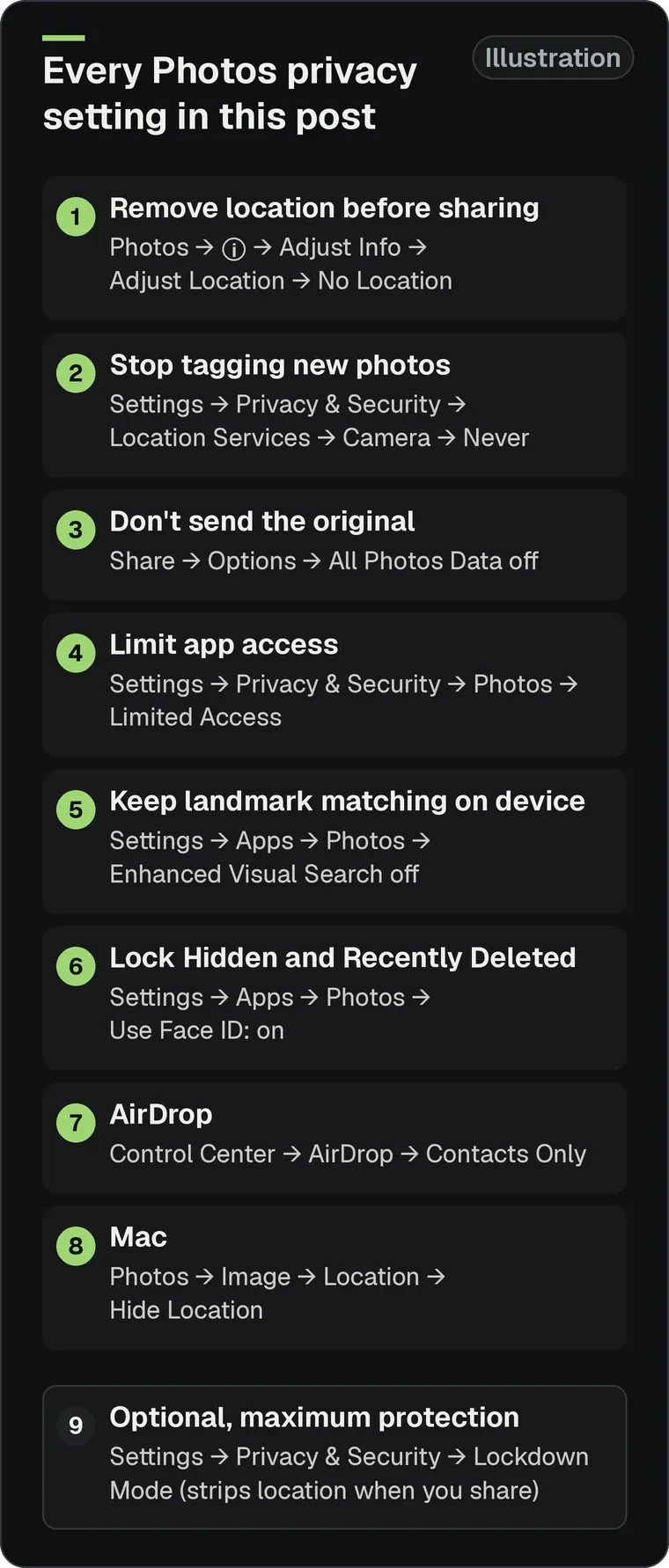
Doing a batch? Tap Select first. If Share → Options shows a Location switch, turn that off too, but Apple’s iOS 27 sharing page doesn’t list it, so don’t count on it.
What’s really in the file
Removing the location doesn’t remove the rest. Apple’s own note: “Sharing a photo or video includes sharing its associated metadata, such as date and time, location, device, and captions.” Videos are tagged too: Apple says the coordinates are embedded “into each photo and video.” Location in your library is useful for the Photos map and search by place; the risk is the copy that leaves your phone.
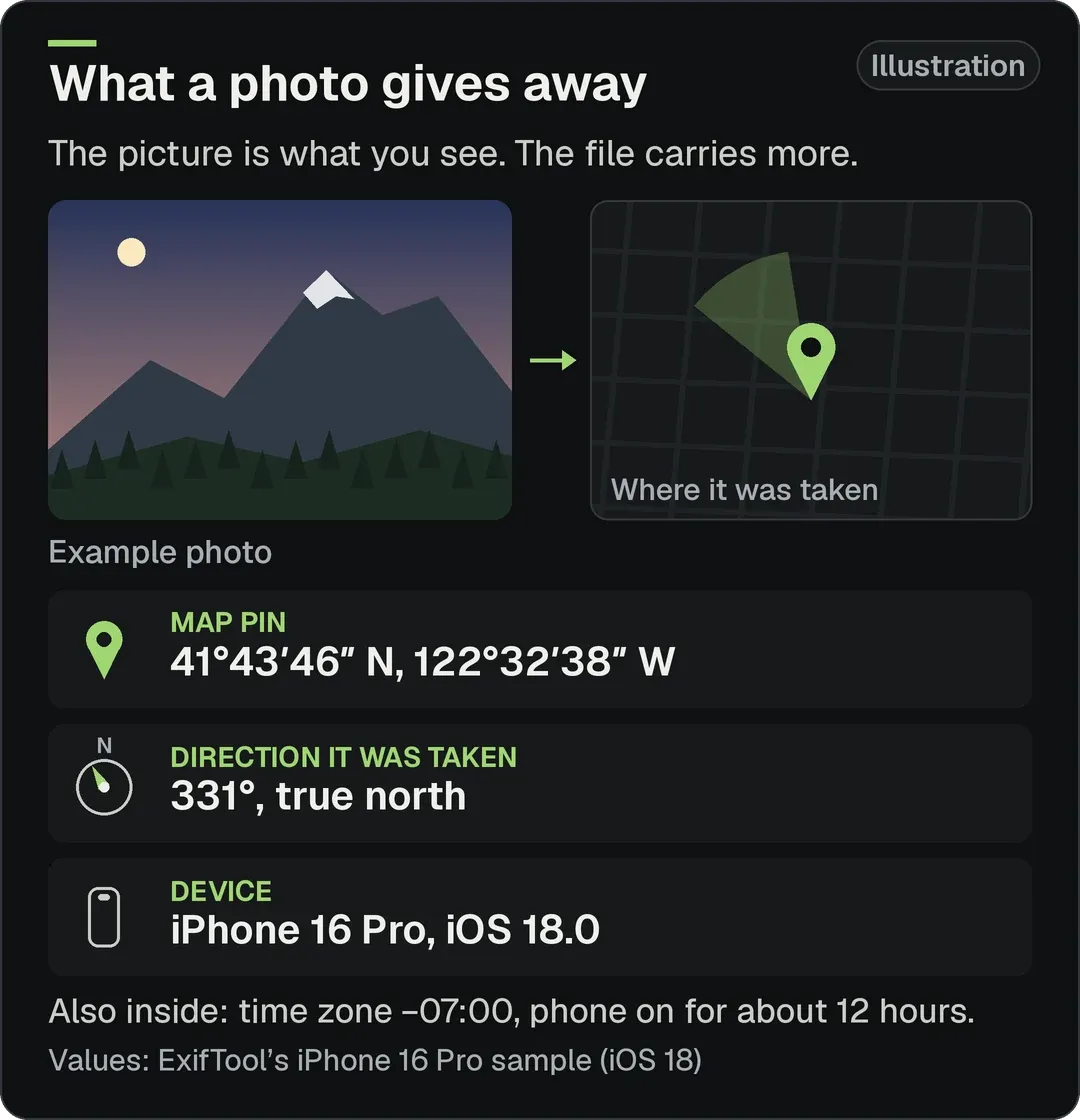
We ran ExifTool on its iPhone 16 Pro sample photo. Besides the coordinates, it held:
- Device and software:
Model“iPhone 16 Pro”,Software“18.0” (the iOS version), and the exact lens. - Time zone:
OffsetTimeOriginal“-07:00”. - Which way the camera faced:
GPSImgDirection331°, true north. - Movement and accuracy:
GPSSpeed, plusGPSHPositioningErrorof about 15 m. - Phone uptime: ExifTool’s docs say Apple’s maker notes record “the amount of time the phone has been running since the last boot.” The sample showed 12 hours.
For an investigator, direction plus a position narrows down which side of a building, or which window, a photo was taken from. GPS tags can include altitude too.
Check photos people send you
On a Mac with ExifTool:
exiftool -n -GPSPosition -GPSImgDirection photo.heic-n prints plain numbers you can paste into a map. To strip every GPS tag, including direction and altitude, from your own file:
exiftool -gps:all= -xmp:geotag= IMG_1234.HEICThat leaves device and maker-note data in place. ExifTool also keeps a copy ending in _original, which still has everything. Delete it once you’ve checked the new file.
Removing it in Photos isn’t erasing it
Photos can Revert to the original location, so the original is kept. With iCloud Photos on, Apple says changes you make on one device “automatically appear on all your devices.”
One trap: All Photos Data under Options sends “the original file with edit history and metadata.” Leave it off unless the person needs your edits.
Want a truly clean copy? Strip an exported file with ExifTool, or use an app. Metapho (paid unlock) and ViewExif ($0.99) both carry Data Not Collected labels. Free: PhotoLocation - Remove GPS, a newer app with few reviews so far, has no in-app purchases and collects only anonymous usage data. Exif Metadata is free to download, but it shows ads and its label says Data Used to Track You; Pro ($19.99 lifetime) removes the ads and adds batch editing. We earn nothing from any of them.
Set a false flag location
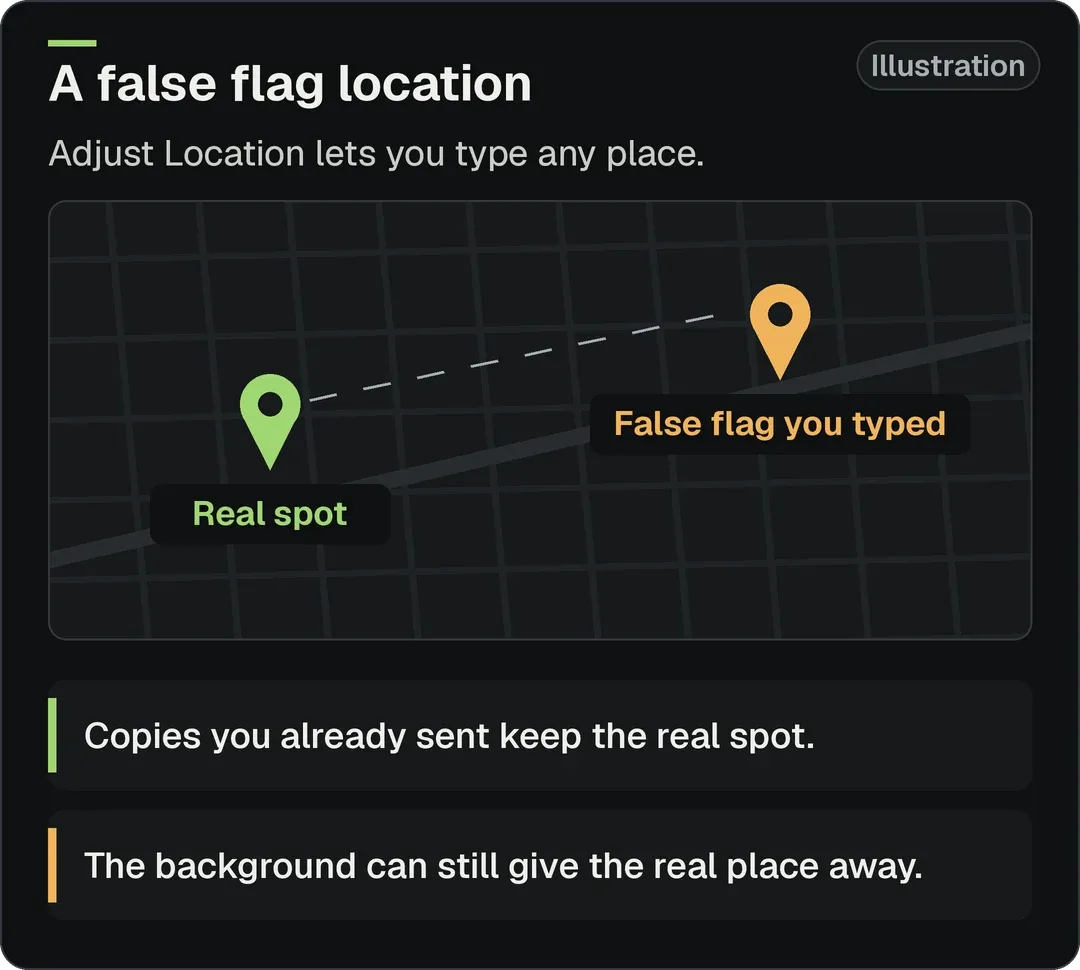
Removing the location leaves a blank. A false flag fills it with the wrong answer.
Tap ⓘ → Adjust Info → Adjust Location, type any place, and pick it from the results. Anyone who reads the file sees your false flag, not where you were.
Know the limits:
- It only changes metadata. The skyline, signs and sun in the frame stay put. A Paris pin on a Brooklyn street photo draws attention, so pick a false flag that matches the background.
- The real one isn’t gone. Photos can still Revert to it, as above.
- Copies you already sent keep whatever location they had when they left.
- Other GPS fields: Apple doesn’t say whether a new location also rewrites the heading or altitude. Check your copy with ExifTool (above) before you trust it.
The settings most people miss
What apps can see
Apple’s privacy page says Allow Full Access gives an app “your photos and videos, including your hidden photos even if the album is locked.”
When an app uses the photo picker, Apple says “access to photos includes associated metadata, such as location and depth information.”
Fix: go to Settings → Privacy & Security → Photos and switch apps to Limited Access, so you choose exactly which photos each one gets.
Enhanced Visual Search
Photos can match landmarks in your pictures against a list on Apple’s servers. Apple says it sends an encrypted “embedding — not image data,” plus fake requests, through a relay that hides your IP address. If you’d rather nothing leaves your phone, turn off Enhanced Visual Search in Settings → Apps → Photos.
Lock down the library
- Hidden and Recently Deleted are “locked by default” with Face ID, Touch ID or your passcode. Keep Use Face ID on in
Settings → Apps → Photos. - Advanced Data Protection makes iCloud Photos end-to-end encrypted. Shared Albums “do not support Advanced Data Protection.” Shared Library does, if everyone in it has it on.
- AirDrop: set Contacts Only from Control Center. Since iOS 26.2, people not in your contacts need an AirDrop code to send you anything.
Lockdown Mode does it for you
If you use Lockdown Mode, Apple says: “When you share photos, location information is excluded.” Shared Albums are removed from Photos and new invitations are blocked.
The background still talks
No metadata doesn’t mean no clues. Street signs, shop names, a bus number and the view from a window can place a photo. Look past the subject before you post.
If you haven’t yet, start with the Basics.